Create a Tour Template
Intro
Tour templates are a way to define the tours that you want to be able to schedule througout the year. A tour template contains the following properties:
- Title: The title of the tour template (e.g. “Standard Tour”, “VIP”)
- Description: A detailed description of what visitors can expect on this tour
- Minutes before check-in: The number of minutes before the tour start time that guests should check in
- Max Guests: The maximum number of guests allowed per tour
- Guides Required: The number of guides required for the tour
- Allow Multiple Reservations: If this is enabled, you will be able to add other reservations to this tour as long as the tour is not full
- Enabled: If this is enabled, you will be able to schedule this tour template
- Age & Guardian Requirement
- Minimum Age: The minimum age required to attend this tour
- Guardian Required: If this is enabled, guests must be accompanied by a guardian
- Guardian Age: The age of the guardian required to attend this tour
- Guardians Required: The number of guardians required to attend this tour
Who’s allowed to create tour templates?
- Owners & Managers: Can create, edit, and delete tour templates
Creating a tour template
- Navigate to the Tour Templates page
- Click the “Create Tour Template” button
- Fill out the form and click “Create”
Once you’ve created a tour template, you will need to define the prices and schedules so that these can be booked.
Setting age and guardian requirements
You can set age and guardian requirements for your tour template. This will ensure that only guests who are of age and accompanied by a guardian of a certain age can book this tour.
Adding prices
The template prices allow you to define custom pricing rules based on age, guest count, and season.
From your tour template, click the “Prices” tab.
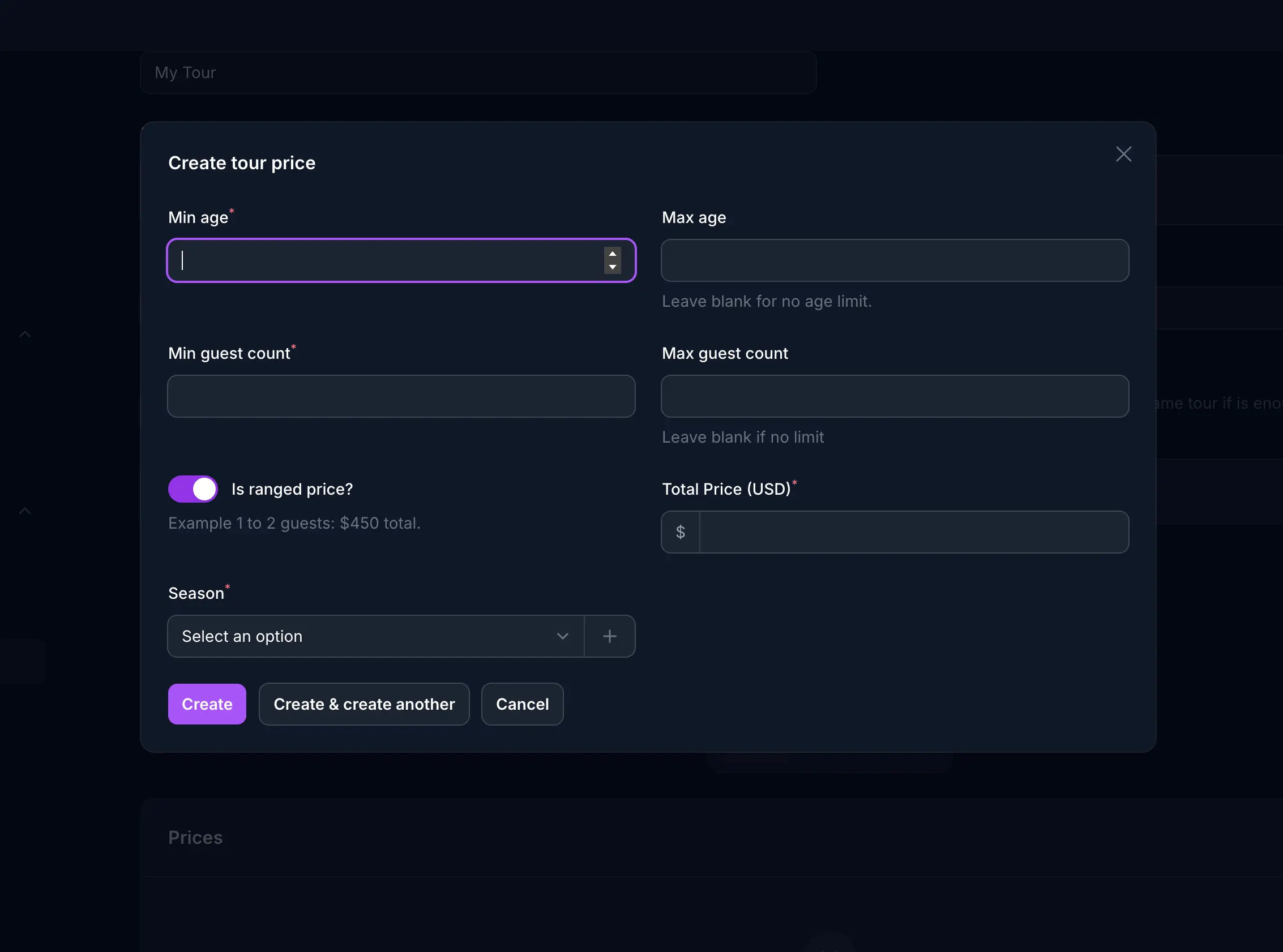
Within that modal you will be able to add the following:
- Min Age: The minimum age this price should apply to. If left blank, 0 will be the minimum age.
- Max Age: The maximum age this price should apply to. If left blank, this price will apply to anyone over the minimum age.
- Min Guest Count: The minimum number of guests this price should apply to. If left blank, 0 will be the minimum guest count.
- Max Guest Count: The maximum number of guests this price should apply to. If left blank, this price will apply to anyone over the minimum guest count.
- Is Ranged Price?: If this is enabled, the price will be mean the total price is for the number of guests within the range.
- Total Price: (only with ranged pricing) The total price for the number of guests within the range.
- Price Per Guest: The price per guest for this tour template.
- Season: The season this price will apply to.
What are “Ranged Prices?”
Ranged prices are a way to set a fixed price for a range of guests. For example, if you want to charge $450 for the first two guests, but you want to charge $150 per guest for a tour with 3 - 4 guests, you can toggle the “Is Ranged Price?” checkbox and set the “Total Price” to $450.
Once you’ve added a price, click the “Save” button. You will be able to add multiple prices for different age ranges and guest counts.
Adding schedules
The tour schedule defines when this tour can be booked. Since your offerings my change seasonally you may choose when you would like the tour times to be available.
To add a schedule to your tour template, click the “Tour Availability” tab.
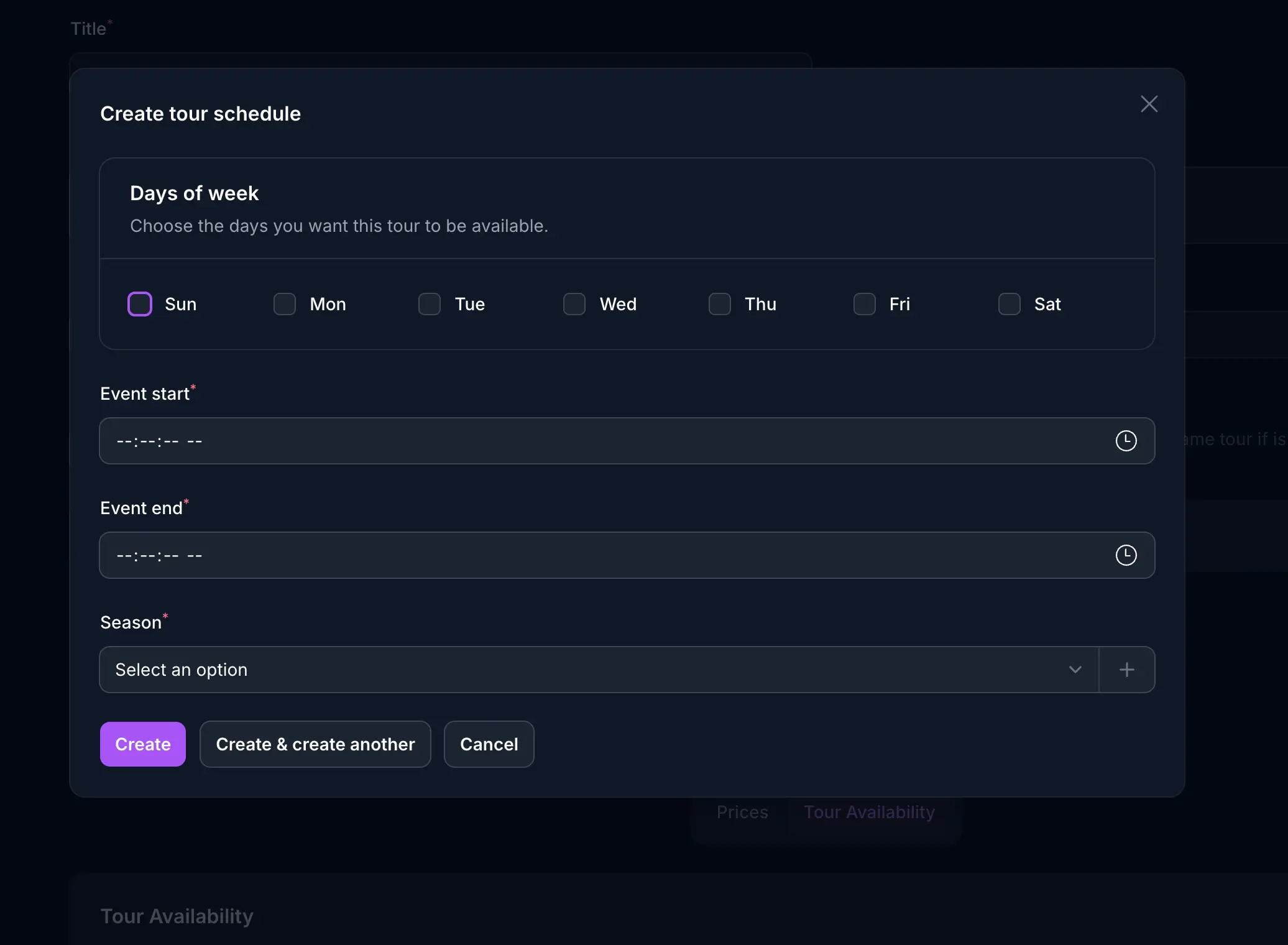
Within that modal you will be able to add the following:
- Days of Week: The days of the week this tour will be available.
- Event Start: The start time for this scheduled time.
- Event End: The end time for this scheduled time.
- Season: The season this schedule will apply to.
Once you’ve added a schedule, click the “Save” button. You will be able to add multiple schedules for different days of the week.
Limiting tours per day and timeslot
You can set limits on a tour so that it may only be booked a certain number of times per day, or a certain number of times per timeslot.
Limiting Tours Per Day
You may need to limit a tour template so that it can be booked only once per day even though it has several timeslots available. To do this, go to the Tour Template you want to limit, click the “Tour Availability” tab, and set the “Tours per day” field to the number of tours you want to allow per day. If you leave this blank, it will defer to the “Tours per time” field on the available schedules for that tour on a given date.
Limiting Tours Per Timeslot
By default all new Tour Template Schedules will allow one booking per timeslot. In some cases you may want to allow multiple bookings so that some tours can happen simultaneously. To do this, got to the Tour Template you want to change, and click the “Tour Availability” tab. Click the schedule you want to change and enter the desired number of bookings you want to allow per timeslot in the “Tours per time” field.
Choosing other tours that count towards this tour’s quota
You may want to limit how many times a tour can be booked if another tour has been booked. You can choose other tours and add-ons that count towards this tour’s quota to prevent double booking.